
How do I send Evaboot leads to lemlist?
Paste your lemlist API key into Evaboot, then pick the campaign that receives your leads. Each integration sends leads to one lemlist campaign.
Before you start
Section titled “Before you start”- A lemlist account on the Email Pro plan or above. The lemlist API is not available on lower plans.
- Your lemlist API key. In lemlist, go to Settings, Integrations, API and copy the key.
- A campaign in lemlist to add the leads to.
Connect lemlist
Section titled “Connect lemlist”- Open Integrations and click New integration. If you have no integration yet, the tool cards show on the page directly.
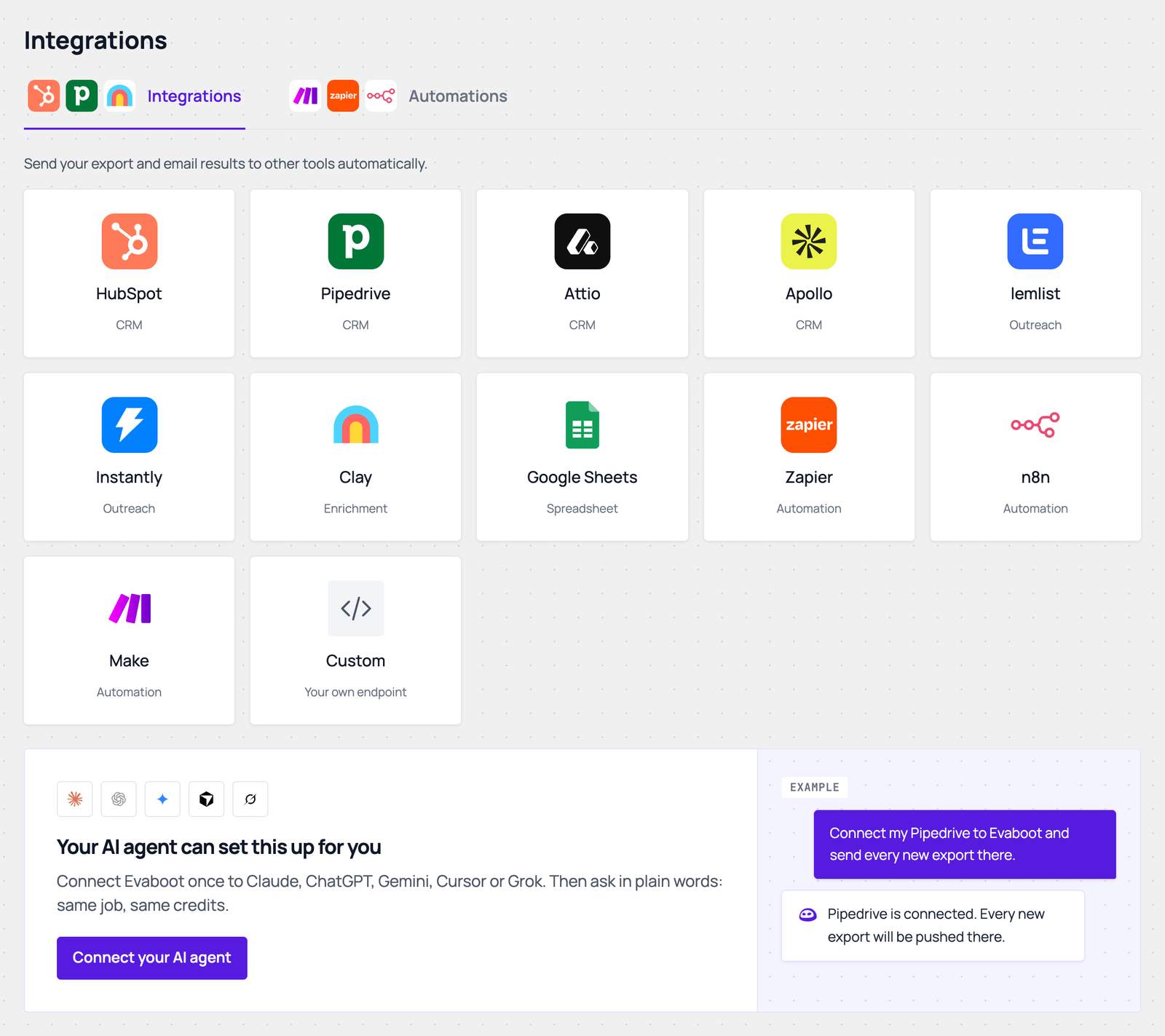
- Click the lemlist card.
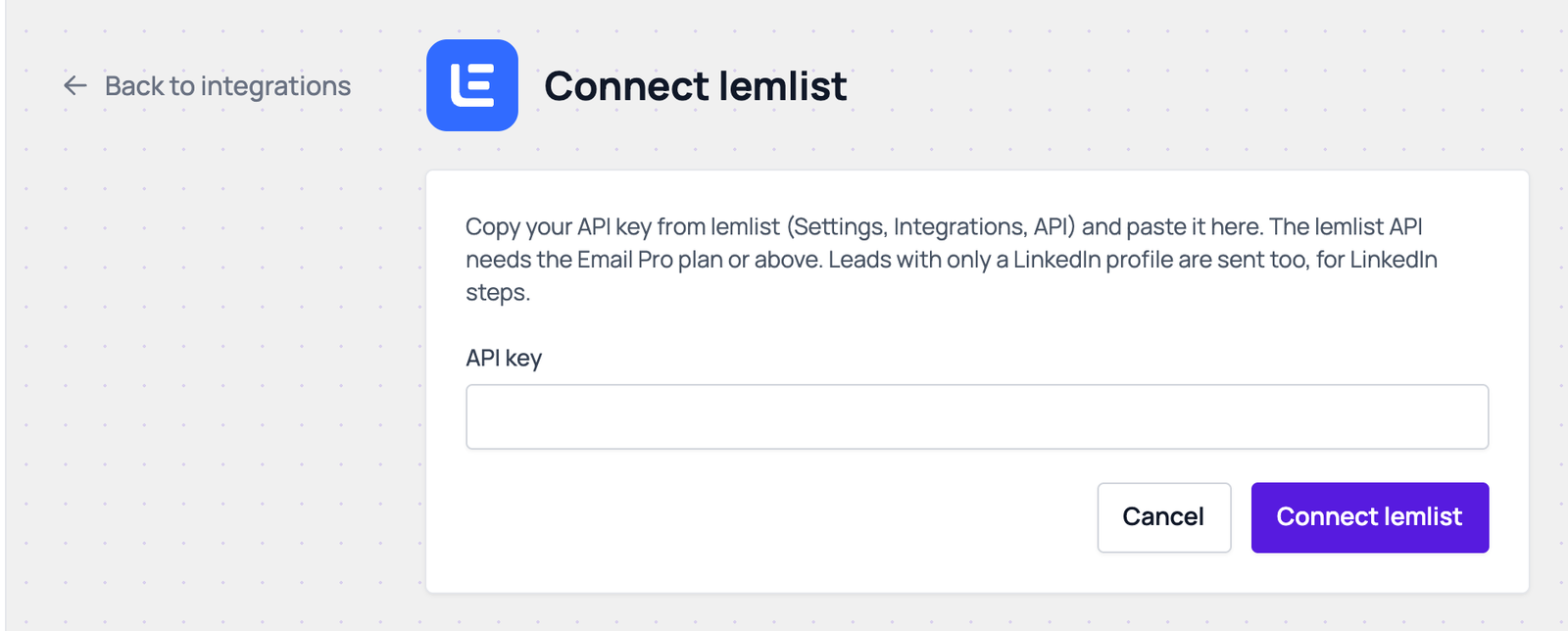
- Paste your key in the API key field and click Connect lemlist. Evaboot checks the key with lemlist, then opens the lemlist settings page.
Choose the settings
Section titled “Choose the settings”- Name the integration and pick the Campaign.
- Pick what to send under Send data from: Sales Navigator exports, URL enrichment, Email finder or Email verifier.
- Set the filters.
- Email filter: starts on Safe emails only. Leads with a riskier email are left out. Leads with no email are still sent, for LinkedIn steps.
- Qualification filter: All prospects, or Qualified only.
- Pick the trigger.
- Automatic: send when a job completes: each finished, unlocked export is sent. Under Send leads from, choose all exports, all recurring exports, specific recurring exports, or specific folders.
- Manual: only send when you trigger it: nothing is sent until you push an export yourself.
- Choose the options.
- Overwrite existing values with Evaboot data: off, Evaboot only fills empty fields of a lead lemlist already has.
- Skip leads already in another campaign: on by default. Leads already in another campaign of this workspace are skipped.
- Click Save. The integration appears on the Integrations page.
To send leads to another campaign, create a second lemlist integration. Click the lemlist card again and pick the other campaign.
What Evaboot sends to lemlist
Section titled “What Evaboot sends to lemlist”- One lead per person, with email, first name, last name, company name, company domain, job title, LinkedIn URL, company LinkedIn URL and company website.
- An
evabootLinkedinIdvalue, which lemlist stores as a custom variable. - For URL enrichment exports, your own upload columns are sent too, as custom variables.
- A lead with only a LinkedIn profile URL (no email) is sent too, for LinkedIn steps. A lead with neither is skipped.
- Account exports are not sent: lemlist takes people only.
How duplicates are avoided:
- A lead already pushed to this campaign is skipped without a request.
- A lead lemlist reports as already in the campaign, in another campaign, or in its blocklist is counted as skipped, not failed.
Send an export by hand
Section titled “Send an export by hand”On the export list, click + in the Push column of a finished export (Push this export) and pick your lemlist integration. The export must be unlocked first. Click the lemlist logo in the same cell to see the push log: created, skipped and failed counts.
To send every run of a recurring export, pick the integration under Send new leads to when you set the schedule up.
If it didn’t work
Section titled “If it didn’t work”- “That API key was refused. Check it and try again.”: copy the key again from lemlist and paste it without spaces.
- “lemlist accepted the key, but this account’s plan or permissions do not allow API access.”: your plan does not include the API. Email Pro or above is needed.
- “The lemlist campaign no longer exists.”: open the integration with Edit, pick another Campaign, then Save.
- Reconnect shows in the Status column: lemlist no longer accepts the key. Click Reconnect and paste a valid key.
- Many leads skipped: check Email filter and Skip leads already in another campaign on the integration.