
How do I send Evaboot leads to HubSpot?
Connect HubSpot from the Integrations page, finish the field mapping, then create the integration. Evaboot then creates or updates contacts and companies in HubSpot and links each contact to its company.
Before you start
Section titled “Before you start”- A HubSpot account. You sign in to HubSpot and approve Evaboot’s access on HubSpot’s own page. No API key is needed.
- A contact property for the company’s LinkedIn URL. HubSpot has none by default. If you don’t have one, create a single-line text property on contacts in HubSpot. You can also do it during step 5.
Connect HubSpot
Section titled “Connect HubSpot”- Open Integrations and click New integration. If you have no integration yet, the tool cards show on the page directly.
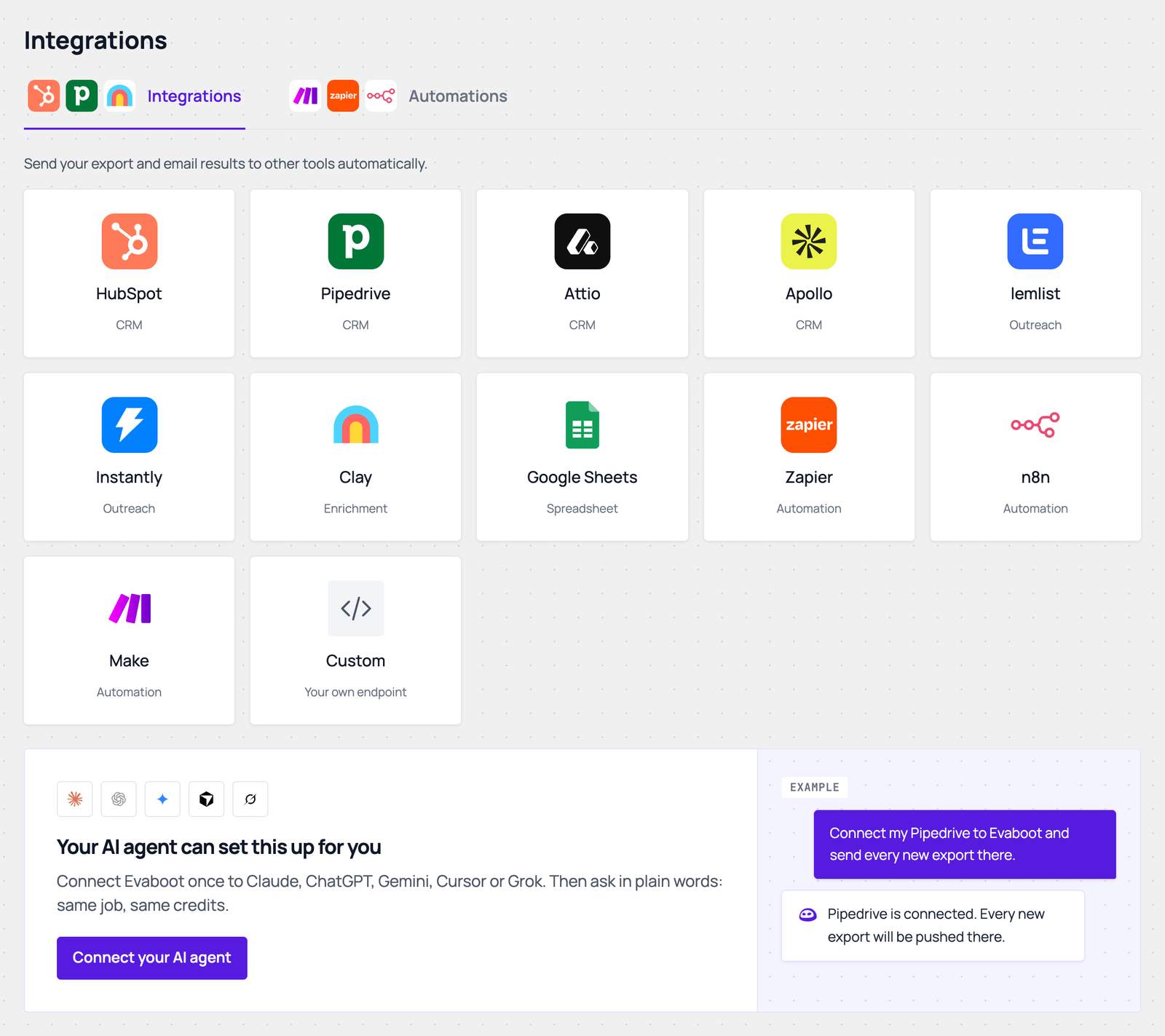
- Click the HubSpot card, then Connect HubSpot.
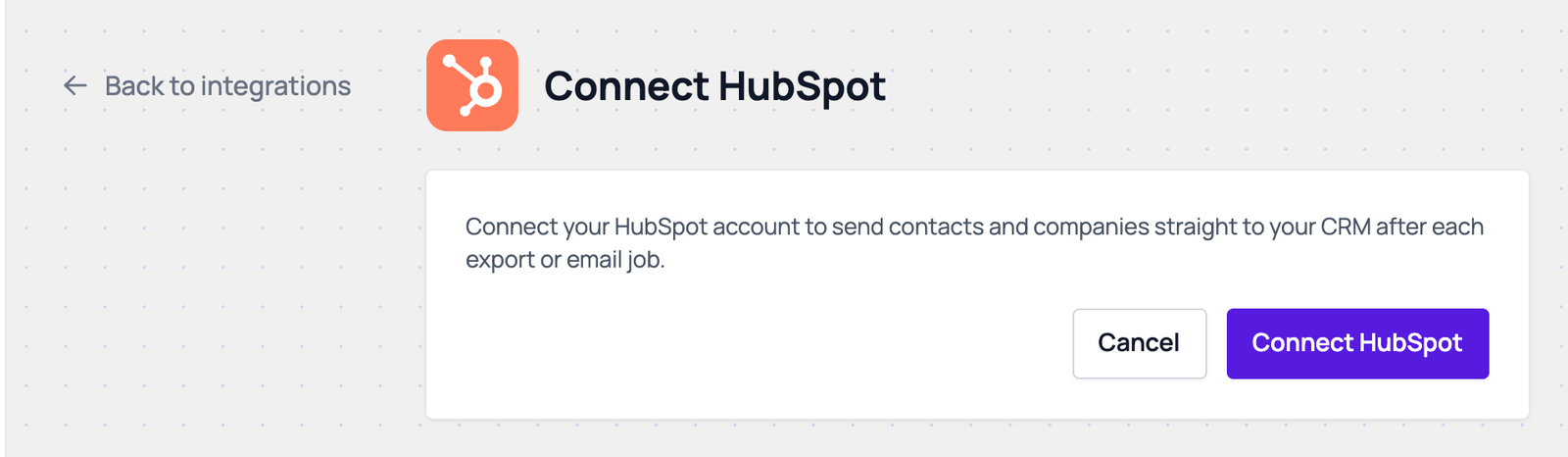
- Approve the access on the HubSpot page. You come back to Evaboot.
Map your fields
Section titled “Map your fields”Evaboot fills in a standard mapping when the properties exist in your HubSpot. If a required field is still missing, you land on the HubSpot field mapping page.
- Pick a HubSpot property for each Evaboot field you want to sync. Leave Not synced for the others. Fields marked Required must be mapped.
- Company fields map to company properties. Everything else maps to contact properties.
- Use Search fields to find a field fast.
- Map the company LinkedIn URL on the contact. If no property fits, create one in HubSpot, then click Refresh properties.
- Click Save mapping. Evaboot opens the New HubSpot integration form.
Create the integration
Section titled “Create the integration”- Name the integration. Click Edit field mapping if you want to change the mapping later.
- Pick what to send under Send data from: Sales Navigator exports, URL enrichment, Email finder or Email verifier.
- Pick the trigger.
- Automatic: send when a job completes: each finished, unlocked export is sent. Under Send leads from, choose all exports, all recurring exports, specific recurring exports, or specific folders.
- Manual: only send when you trigger it: nothing is sent until you push an export yourself.
- Click Create webhook. The integration appears on the Integrations page.
What Evaboot sends to HubSpot
Section titled “What Evaboot sends to HubSpot”- Contacts are matched on the LinkedIn URL property you mapped, or on the email when there is no LinkedIn URL. A match is updated. Otherwise a new contact is created.
- Companies are matched on the domain, or on the company LinkedIn URL when there is no domain. Leads with neither get no company.
- Each contact is associated with its company.
- Only mapped fields are written. Empty Evaboot values are not sent, so they never clear a HubSpot value.
- A value that a HubSpot dropdown property does not offer is left out. The rest of the record is still written.
- Account exports create or update companies only.
Send an export by hand
Section titled “Send an export by hand”On the export list, click + in the Push column of a finished export (Push this export) and pick your HubSpot integration. The export must be unlocked first. Click the HubSpot logo in the same cell to see the push log, with the contacts and companies created or updated.
To send every run of a recurring export, pick the integration under Send new leads to when you set the schedule up.
Send test is not offered for HubSpot: a test would write sample data into your CRM.
If it didn’t work
Section titled “If it didn’t work”- “Missing required HubSpot fields” in the logs: open Edit field mapping, map the fields listed, and click Save mapping.
- “Map these fields before saving” on the mapping page: every Required row needs a property.
- “token refresh failed” in the logs: HubSpot no longer accepts the connection. Open Edit field mapping, click Disconnect at the bottom of the page, then connect again. Disconnecting deletes your HubSpot integrations, so create it again after.
- “HubSpot connection was cancelled or failed”: the approval on HubSpot did not finish. Click Connect HubSpot again.
- “We couldn’t load your HubSpot properties”: try again in a moment. Check the HubSpot account is still connected.
- The integration shows Down: it failed 5 times in a row. Fix the cause, then click Reactivate in its actions menu.