
How do I use Evaboot from Claude Code?
Run one command in your terminal to add Evaboot to Claude Code. The command carries your Evaboot API key. You can sign in through your browser instead.
Once connected, Claude Code can build a Sales Navigator search from your description, launch the export, and find or verify emails. It uses the same credits and daily quota as the Evaboot dashboard.
Server URL: https://mcp.evaboot.com/mcp
Before you start
Section titled “Before you start”- Claude Code installed on your computer.
- An Evaboot account.
- Your Evaboot API key. Find it on the API key page. The MCP page shows the command with your key already in it.
- A connected Sales Navigator account for searches and exports. Email finding and email verification work without one.
Treat the key like a password. It gives full access to your Evaboot account. Never commit it to a repository or paste it into a shared document. A new key immediately breaks anything still using the old one.
-
Copy the command from the MCP page, under Claude Code. Or replace
YOUR_API_KEYbelow with your key: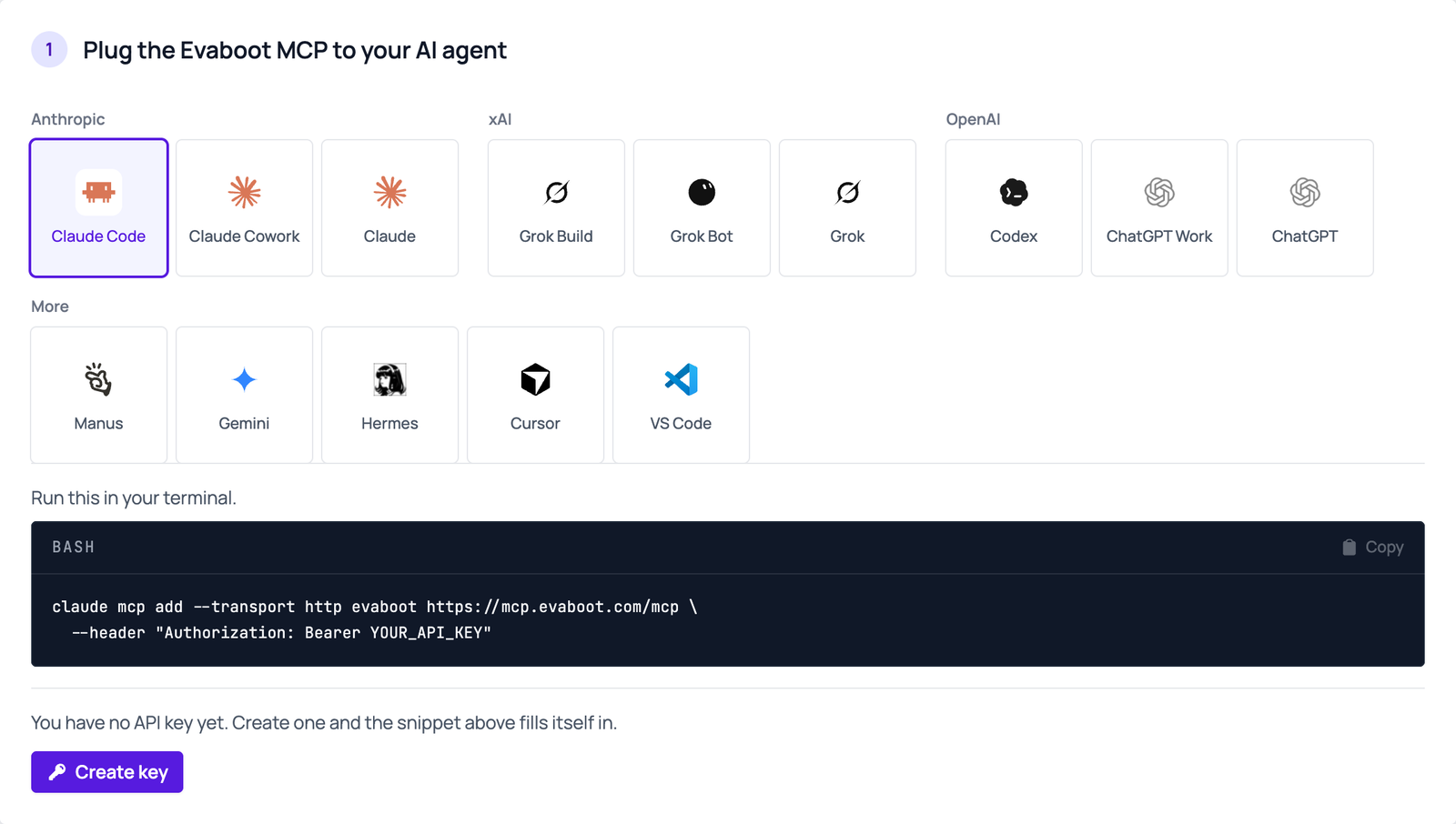
Terminal window claude mcp add --transport http evaboot https://mcp.evaboot.com/mcp \--header "Authorization: Bearer YOUR_API_KEY"- Prefer browser sign-in? Leave out
--header. Claude Code then opens the Evaboot sign-in instead:claude mcp add --transport http evaboot https://mcp.evaboot.com/mcp
- Prefer browser sign-in? Leave out
-
Run it in your terminal.
-
Run
/mcpinside Claude Code. Check that Evaboot shows as connected.
Then ask
Section titled “Then ask”For example: “Using Evaboot, find HR directors at French SaaS companies and export the first 50 with emails”.
If it didn’t work
Section titled “If it didn’t work”- The connection fails, or Claude Code reports a 401. Check that the header reads exactly
Authorization: Bearer <key>. Check that the key is the current one. - No Evaboot tools appear. Remove the server and add it again.
- A tool says “insufficient credits” (402). Check your balance in the Evaboot dashboard.
- A tool returns a 429 error. If the message starts with
No connected LinkedIn account, run one extraction from the Evaboot Chrome extension to reconnect your seat. Otherwise you reached the daily export limit of your Sales Navigator seat: wait for the daily reset. - Quota shows 0, or a tool returns 409. Evaboot lost your Sales Navigator connection. In Chrome, signed in to the same Evaboot account, open a Sales Navigator search and click Export with Evaboot. Opening the launch page is enough. Then retry. Full steps: How to reconnect your LinkedIn account.