
How do I use Evaboot from Claude, ChatGPT or Cursor?
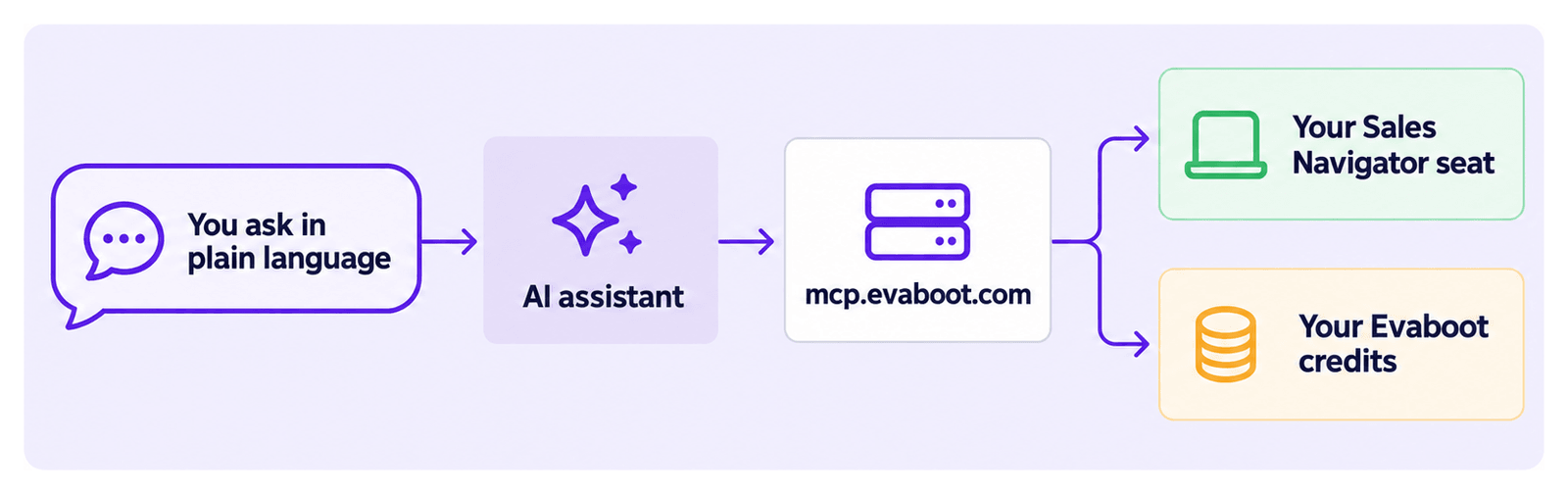
The Evaboot MCP server lets an AI assistant run Evaboot for you. You ask in plain language — “find HR directors at French SaaS companies and export the first 50 with emails” — and the assistant builds the search, launches the export, and polls it until the results are ready.
It also handles searches over 2,500 leads. Ask it to split the search into smaller searches, and it launches an export for each.
There is nothing to install. The server is hosted by Evaboot.
Server URL: https://mcp.evaboot.com/mcp
Before you start
Section titled “Before you start”- Your API key. It lives on the API key page of the dashboard. Clients that read a config file use this key. Grok, Claude and ChatGPT on the web sign in through your browser instead.
- A connected Sales Navigator account. Everything that touches LinkedIn — exports, searches, lead lists — runs on your own Sales Navigator seat. Email finding and email validation do not need one.

Treat the key like a password. It has full access to your Evaboot account, so never commit it to a repository or paste it into a shared document. Generate New Token issues a new key and immediately breaks anything still using the old one.
Connect your assistant
Section titled “Connect your assistant”On grok.com, open Plugins, click New Connector, then Custom. Paste https://mcp.evaboot.com/mcp, click Add Connector, then sign in to Evaboot and authorize. It works on Grok’s free plan. Step-by-step guide: How Do I Use Evaboot from Grok?
Grok Bot
Section titled “Grok Bot”The Grok Bot desktop app shares connectors with your Grok account. Add Evaboot on grok.com, or follow How Do I Use Evaboot from Grok Bot? to add it from the app in one click.
Grok Build
Section titled “Grok Build”grok mcp add --transport http evaboot https://mcp.evaboot.com/mcp \ --header "Authorization: Bearer YOUR_API_KEY"Run grok mcp list to confirm. You can also install the Evaboot plugin, which adds the server plus four outreach skills: grok plugin install https://github.com/evaboot-labs/evaboot-grok-plugin.git.
Claude Code
Section titled “Claude Code”claude mcp add --transport http evaboot https://mcp.evaboot.com/mcp \ --header "Authorization: Bearer YOUR_API_KEY"Run /mcp to confirm. You should see Evaboot connected, with 37 tools.
Cursor
Section titled “Cursor”Create .cursor/mcp.json in your project:
{ "mcpServers": { "evaboot": { "url": "https://mcp.evaboot.com/mcp", "headers": { "Authorization": "Bearer YOUR_API_KEY" } } }}VS Code (Copilot)
Section titled “VS Code (Copilot)”Create .vscode/mcp.json:
{ "servers": { "evaboot": { "type": "http", "url": "https://mcp.evaboot.com/mcp", "headers": { "Authorization": "Bearer YOUR_API_KEY" } } }}Restart the client after editing either config file.
Claude on the web and desktop
Section titled “Claude on the web and desktop”Web chat interfaces cannot send a custom header, so they sign in through your browser instead of using the API key. Go to Customize → Connectors → Add custom connector, enter https://mcp.evaboot.com/mcp, then click Connect and authorize Evaboot. Leave the advanced OAuth fields empty — the server registers Claude automatically.
Connectors attach to your Claude account, so adding it once covers both web and desktop.
ChatGPT
Section titled “ChatGPT”Custom connectors need developer mode, under Settings → Apps → Advanced settings. Add the same URL as a custom connector and leave authentication set to OAuth. The connector then appears in the composer’s tool picker, where you enable it per conversation.
ChatGPT Work
Section titled “ChatGPT Work”ChatGPT Work, the agent mode in ChatGPT, uses the same apps as ChatGPT. Add Evaboot as described for ChatGPT above, then switch to Work and enable Evaboot for the task.
What you can do
Section titled “What you can do”Your assistant picks the right tools for each request. You never pick them yourself. It can:
- Build a search. It turns a description of your audience into a Sales Navigator search URL.
- Export leads. From a Sales Navigator search or list URL, from up to 2,500 profile URLs, or one profile at a time.
- Find and validate emails. One at a time or in bulk.
- Manage your Sales Navigator lists. Read, create, and delete lead and account lists. Add leads or accounts, or fill a new list from a search.
- Manage your saved searches and read your Sales Navigator alerts.
- Check your account. Remaining daily quota and credit balance.
What the Sales Navigator tools change
Section titled “What the Sales Navigator tools change”Most of these tools only read. Some of them write, and they write to your real LinkedIn account rather than to anything inside Evaboot. It is worth knowing which is which before you let an assistant work unsupervised.
- Creating and deleting is real.
create_lead_list,save_search,delete_lead_list,delete_account_list, anddelete_saved_searchall act on your own Sales Navigator seat. A list your assistant deletes is gone from LinkedIn, not just from Evaboot. Deleting a lead list removes the list itself; the leads inside it stay in your LinkedIn account. - Some searches write lists as a side effect. When you name an industry or a vertical,
build_searchmay run a company-first search, which creates account lists on your seat while it works.lead_list_from_searchandaccount_list_from_searchdo the same by design, saving up to 1000 leads into a new list. - Long jobs should not be retried. Search-to-list jobs run for several minutes. Starting one again because it looks slow re-runs the writes and leaves you with duplicate lists. Poll
get_sn_jobinstead.
If you would rather keep the assistant read-only, say so in your instructions to it, or use a client that asks for approval before each tool call.
Credits and quota
Section titled “Credits and quota”Credits and daily quota are two separate limits, and running out of one does not affect the other.
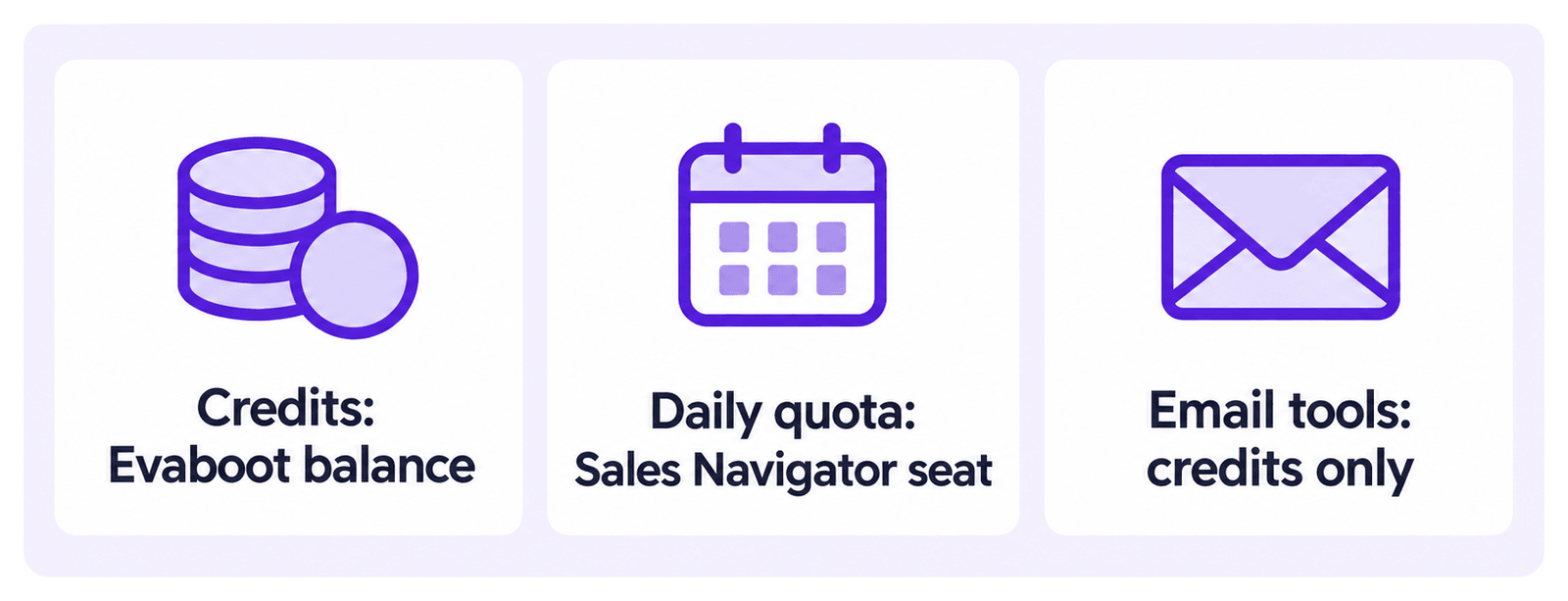
- Credits come from your Evaboot balance. Exports cost 1 credit per lead, its verified email included. Email finding costs 1 per email found, and validation costs 1 per address checked. For exports the balance is checked when the job launches and charged when it completes, based on the leads actually found.
- Daily quota is tied to your connected Sales Navigator seat and resets each day. Ask your assistant to check
get_quotabefore a large run. - Email finding and validation need no Sales Navigator seat. They draw on credits only, so they keep working even when your quota is 0 or your LinkedIn connection has dropped.
If it didn’t work
Section titled “If it didn’t work”The client reports 401, or the connection fails.
On the API-key path, check the header is exactly Authorization: Bearer <key> and that the key is the current one. On the browser sign-in path, disconnect and reconnect to redo the consent screen.
Exports fail with 429, or list tools fail with 409. Both mean the same thing: Evaboot has lost its connection to your LinkedIn account. The two messages are worded differently, and neither gives the full fix.
| What you see | What it means |
|---|---|
429 — No connected LinkedIn account. | Returned by the export tools. |
409 — Your LinkedIn connection has expired or was revoked. | Returned by the list and search tools. |
Opening Sales Navigator is not enough to reconnect. Run one extraction from the Evaboot Chrome extension. That is what re-links the seat. Your assistant can confirm it worked by calling get_quota and checking that has_valid_salesnav is now true.
get_quota shows credits but 0 quota.
Your LinkedIn connection has dropped. Credits are unaffected, which is why email tools still work. Reconnect with an extraction as above.
A raw Sales Navigator search returns nothing, with no error.
search_leads and search_accounts take a rest.li query, not the query= value copied out of a Sales Navigator URL. A copied value is already encoded once, gets encoded again, and LinkedIn answers with zero results rather than an error. Build the search with build_search instead.
The assistant shows no tools after connecting. Refresh the connector’s tool list, or remove the server and add it again.