
How do I send Evaboot results to a webhook?
Create a Custom integration with your HTTPS URL, and Evaboot posts your results to it as JSON. Use it for your own server or any tool that gives you a webhook URL.
Before you start
Section titled “Before you start”- An endpoint that accepts a
POSTwith a JSON body. The URL must start withhttps://. - Optional: the credentials your endpoint checks. Evaboot supports a Bearer token, Basic auth, or an API key header.
Create the webhook
Section titled “Create the webhook”- Open Integrations and click New integration. If you have no integration yet, the tool cards show on the page directly.
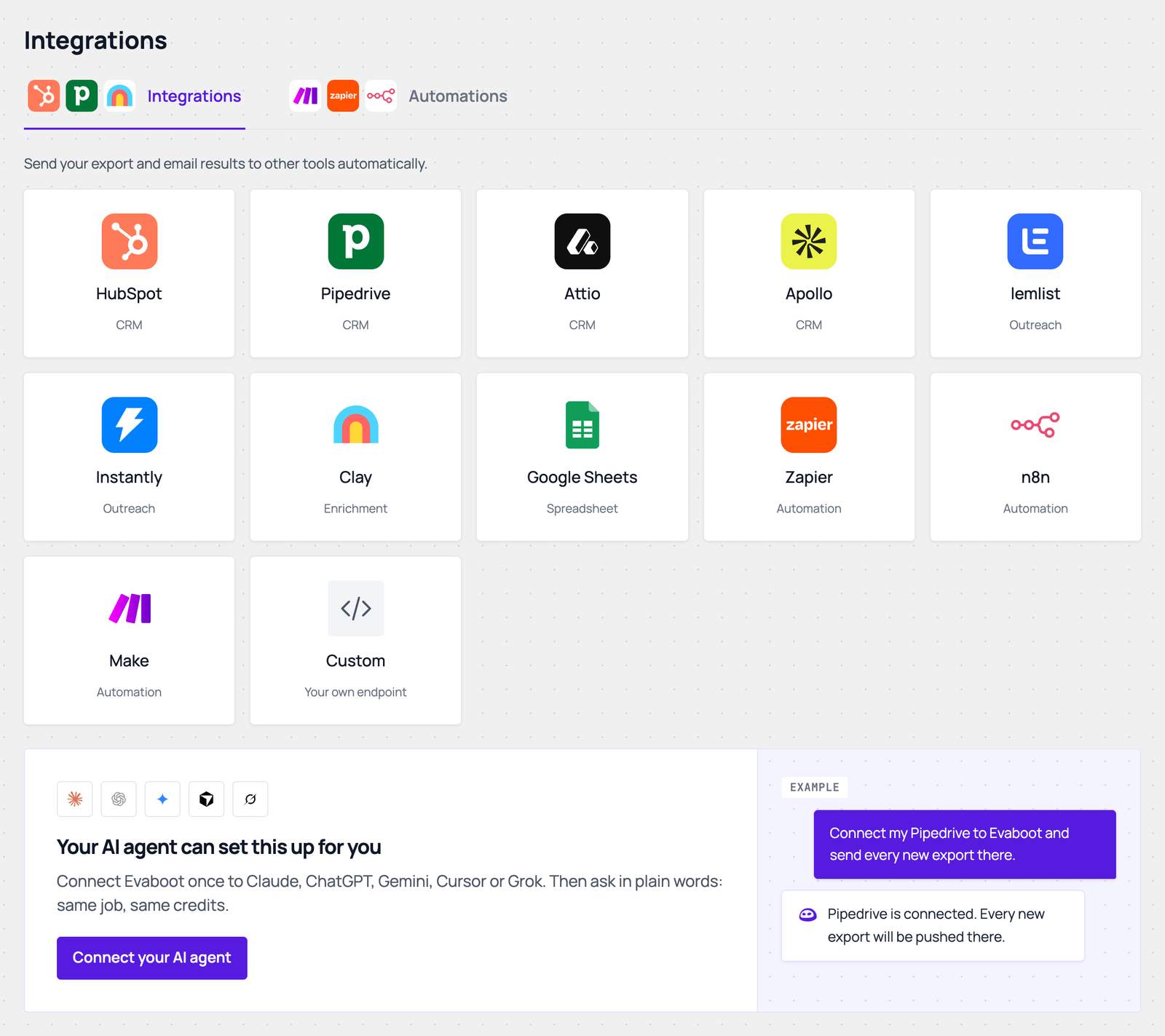
- Click the Custom card (Your own endpoint).
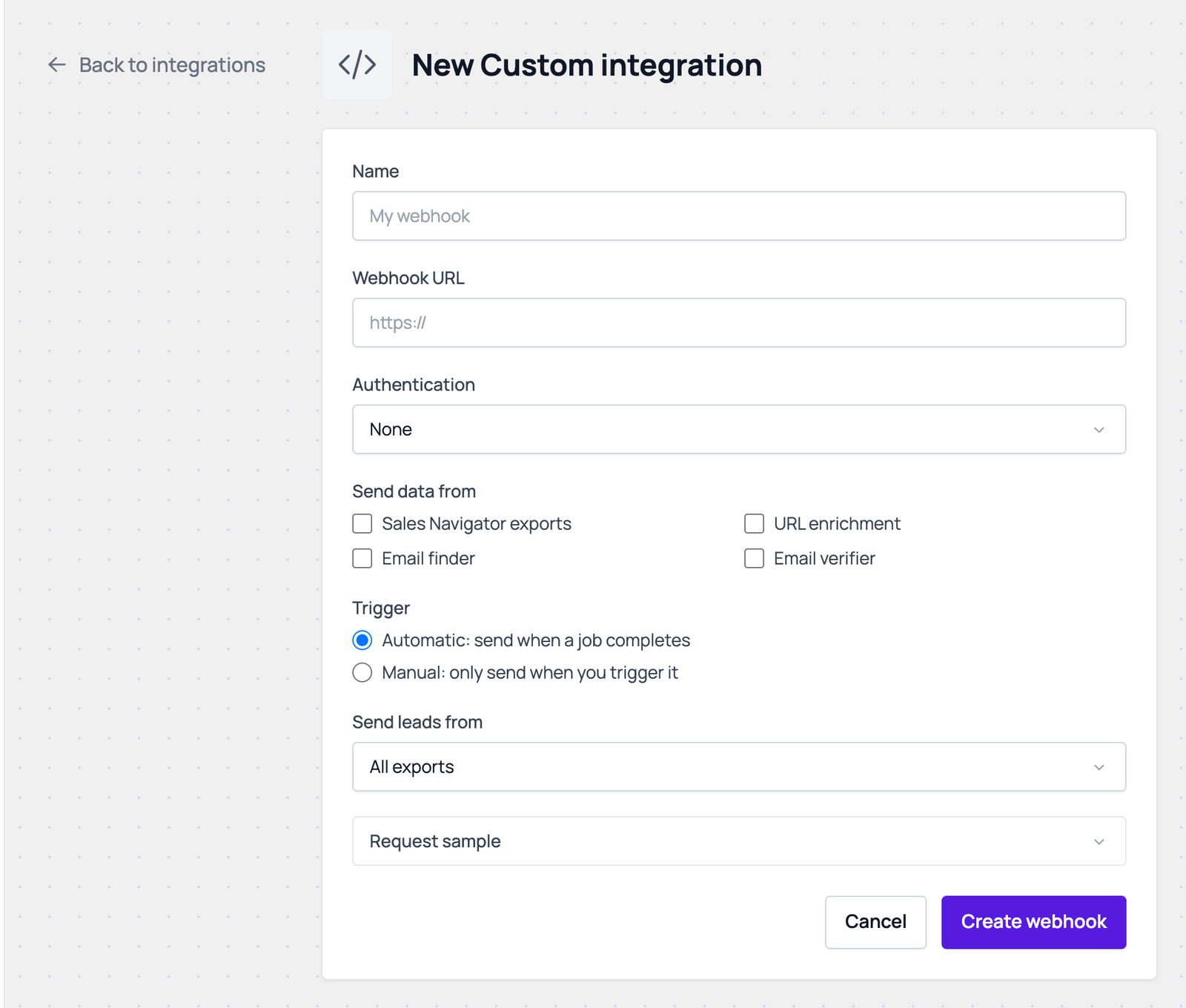
- Name the integration and paste your Webhook URL.
- Pick the Authentication.
- None: a plain POST.
- Bearer token: sent as
Authorization: Bearer <your token>. - Basic auth: enter a Username and Password.
- API key header: pick the Header name (
x-api-key,x-api-tokenorapi-key) and enter the Header value.
- Pick what to send under Send data from: Sales Navigator exports, URL enrichment, Email finder or Email verifier. Exports and email jobs send different payloads, so one webhook takes one or the other, not both.
- For email jobs, set the filters: Email filter and Qualification filter.
- Pick the trigger.
- Automatic: send when a job completes: each finished, unlocked job is sent. Under Send leads from, choose all exports, all recurring exports, specific recurring exports, or specific folders.
- Manual: only send when you trigger it: nothing is sent until you push a job yourself or send a test.
- Open Request sample to see the exact JSON for the first data type you checked.
- Click Create webhook.
- Send a test. Open the webhook’s actions menu on the Integrations page and click Send test. Evaboot posts a sample with fake data, never your real leads.
What Evaboot posts
Section titled “What Evaboot posts”Each delivery is one POST with Content-Type: application/json. One delivery carries the whole job, with the leads in a prospects array.
For exports and URL enrichment:
search_id,search_name,status(EXECUTED),extraction_type(search,listorupload),total_prospects,progress,created_at,completed_at.prospects: one object per lead, keyed by the same column names as your CSV download, such asFirst Name,EmailorLinkedin URL Public. Every key is always present; an empty value is"".
For email finder and email verifier jobs:
search_id,search_name,status(complete),job_type(email_finderoremail_validation),total_prospects,progress,created_at,updated_at.prospects: snake_case keys, such asfound_emailandemail_validity.
Evaboot does not deduplicate for you: every push sends the full job again. Use search_id and each lead’s LinkedIn URL to skip records you already have.
Send a job by hand
Section titled “Send a job by hand”On the export list, click + in the Push column of a finished export (Push this export) and pick your webhook. The export must be unlocked first. The email finder and verifier lists have the same + button.
To send every run of a recurring export, pick the webhook under Send new leads to when you set the schedule up.
How deliveries are checked
Section titled “How deliveries are checked”- Your endpoint must answer within 10 seconds.
- A
2xxor3xxanswer counts as delivered. A4xxor5xxanswer is a failure. - A network error or timeout is retried up to 3 times.
- Every delivery appears in View logs with its status and HTTP code. Tests carry a
TESTtag.
If it didn’t work
Section titled “If it didn’t work”- “Webhook URL must use https://.”: use an HTTPS URL. Plain
http://is refused. - “Create one webhook per data category”: you checked exports and email jobs together. Create two webhooks.
- “non-2xx response or transport failure” in the logs: your endpoint did not answer in time, or could not be reached. Check the URL and that the server is up.
- “HTTP 401” or “HTTP 403” in the logs: your endpoint refused the credentials. Check the Authentication settings.
- The webhook shows Down: it failed 5 times in a row, or your endpoint answered
410. Fix the endpoint, then click Send test or Reactivate in the actions menu.