
How do I send Evaboot leads to Google Sheets?
Connect Google from the Integrations page, then pick a mode for your spreadsheets. Evaboot creates the spreadsheets in your Google Drive and writes each export into them.
Before you start
Section titled “Before you start”- A Google account. You sign in to Google and approve Evaboot’s access on Google’s own page.
- Evaboot can only see and edit the spreadsheets it creates for you. It cannot read anything else in your Drive, so it cannot write into a spreadsheet you made yourself.
Connect Google Sheets
Section titled “Connect Google Sheets”- Open Integrations and click New integration. If you have no integration yet, the tool cards show on the page directly.
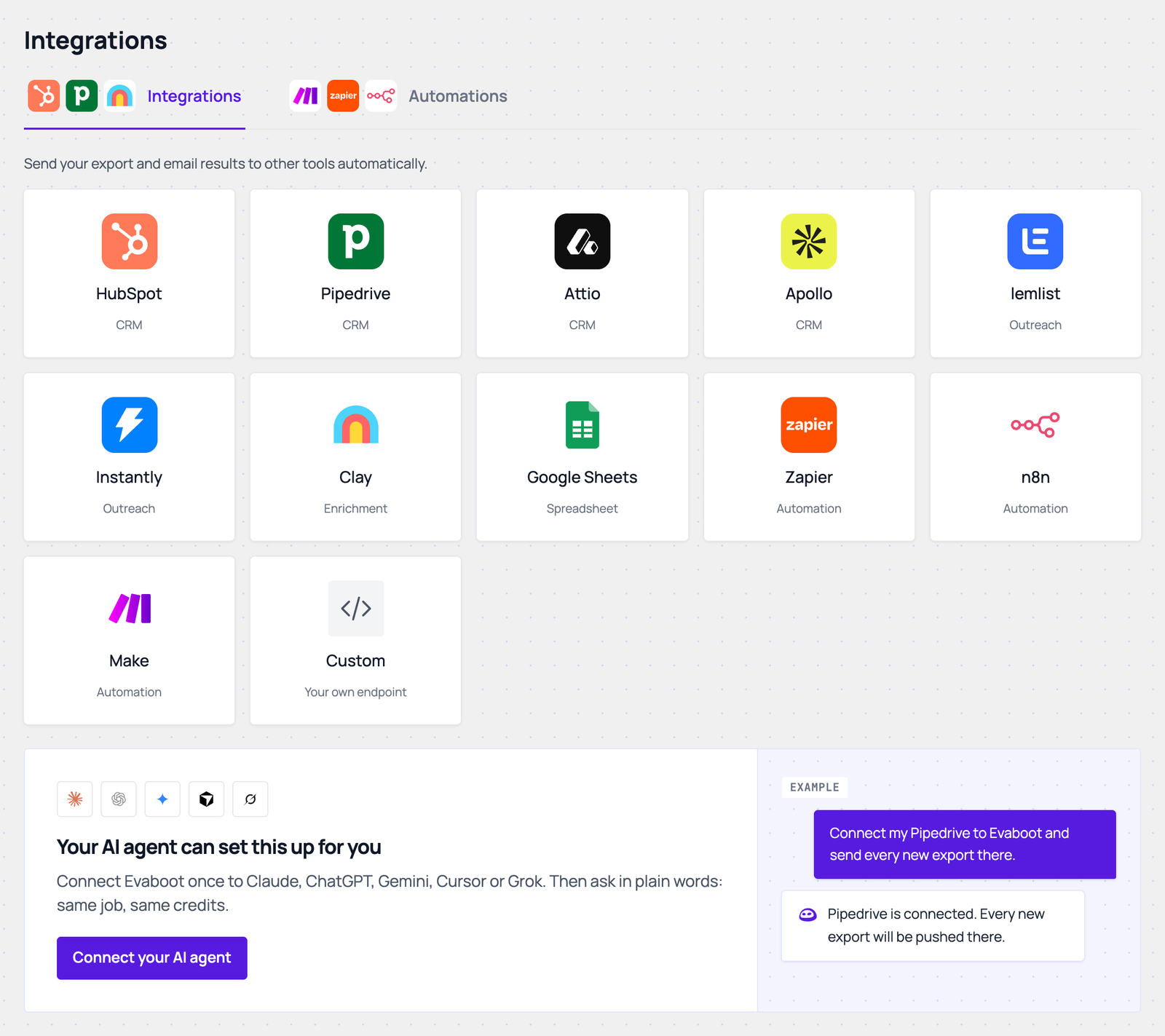
- Click the Google Sheets card, then Connect Google Sheets.
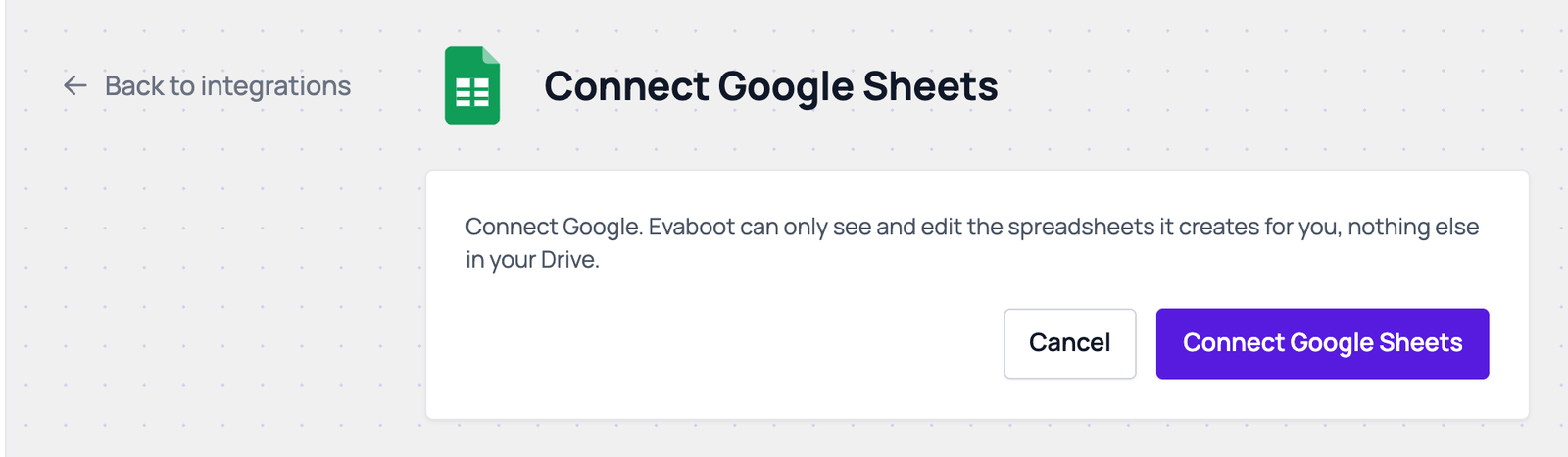
- Approve the access on the Google page. You come back to the Google Sheets settings page, which shows the Google account you connected.
Choose the settings
Section titled “Choose the settings”- Name the integration.
- Pick a Mode.
- New tab per export: one spreadsheet. Each export lands in its own tab.
- New spreadsheet per export: a separate spreadsheet for every export.
- One running sheet: every export adds rows to the same sheet, with an export-name column. Leads already in the sheet are skipped.
- Pick what to send under Send data from: Sales Navigator exports, URL enrichment, Email finder or Email verifier.
- Set the filters.
- Email filter: All emails, Safe emails only, or Found emails only.
- Qualification filter: All prospects, or Qualified only.
- Pick the trigger.
- Automatic: send when a job completes: each finished, unlocked export is sent. Under Send leads from, choose all exports, all recurring exports, specific recurring exports, or specific folders.
- Manual: only send when you trigger it: nothing is sent until you push an export yourself.
- Click Save. The integration appears on the Integrations page.
Where your leads land
Section titled “Where your leads land”| Mode | Spreadsheet name | Tab |
|---|---|---|
| New tab per export | Evaboot exports | One tab per export, named after the export. An About tab comes first. |
| New spreadsheet per export | Evaboot: <export name> | Leads, or Accounts for an account export |
| One running sheet | Evaboot leads | Leads, or Accounts for account exports |
- The columns are the same as your CSV download.
- In a running sheet, Evaboot adds an
Export Namecolumn. A lead is skipped when itsLinkedin URL Unique IDis already in the sheet. Accounts useCompany Linkedin URL Unique ID, email jobs useEmail. - In the two per-export modes, pushing the same export again rewrites its tab or spreadsheet. It does not add a second copy.
- Values are written as plain text, never as formulas.
- When a spreadsheet reaches Google’s cell limit, Evaboot starts a new one with the same name plus a number, like
Evaboot leads 2. - If you delete the spreadsheet, Evaboot creates a new one on the next push.
Send an export by hand
Section titled “Send an export by hand”On the export list, click + in the Push column of a finished export (Push this export) and pick your Google Sheets integration. The export must be unlocked first. Click the Google Sheets logo in the same cell to see the push log.
To send every run of a recurring export, pick the integration under Send new leads to when you set the schedule up.
If it didn’t work
Section titled “If it didn’t work”- “Google Sheets connection was cancelled or failed”: the approval on Google did not finish. Click Connect Google Sheets again.
- Reconnect shows in the Status column: Google no longer accepts the connection. Click Reconnect and approve the access again.
- “Google Sheets is not responding”: wait a few minutes and try again.
- You can’t find the spreadsheet: search your Google Drive for the spreadsheet name in the table above.
- A lead is missing from a running sheet: it was already in the sheet from an earlier export, so it was skipped.